 InjectLog
Journal and history
Record an injection
Create an injection or confirm a reminder.
Steps
- Create an injection or confirm a reminder.
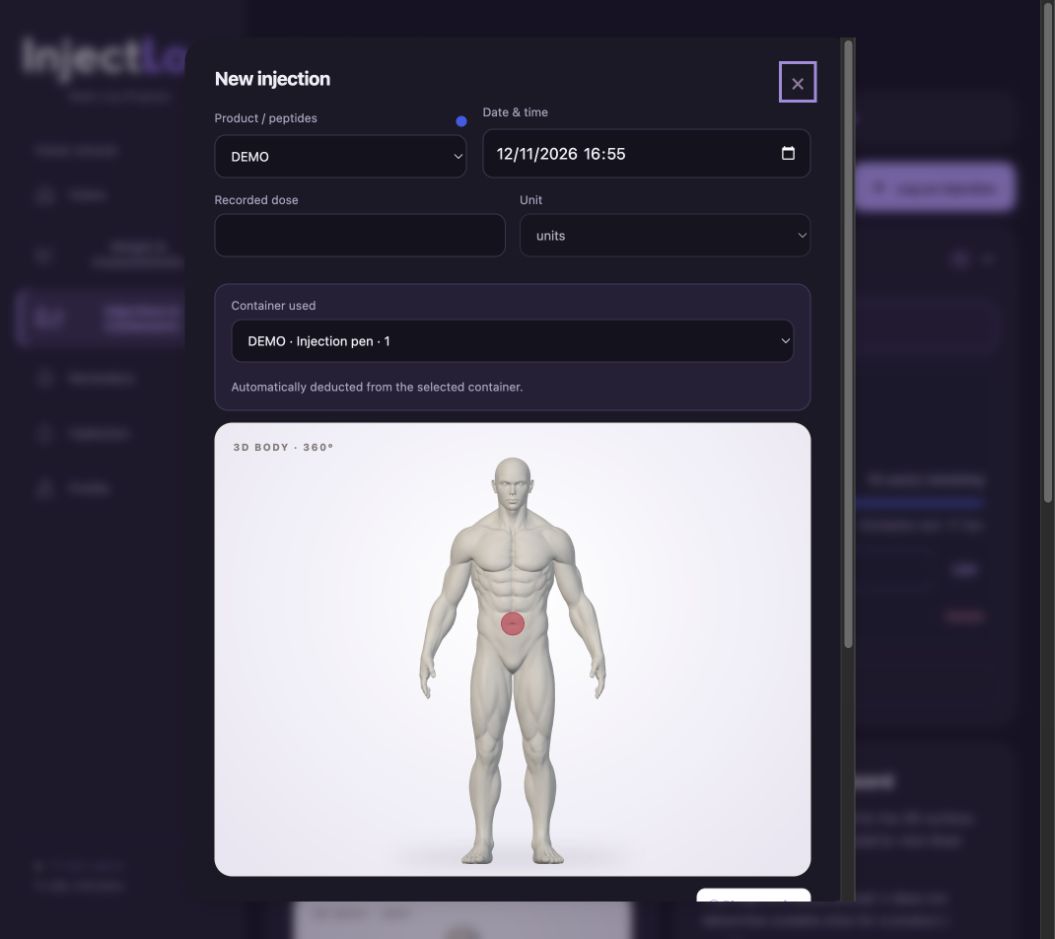
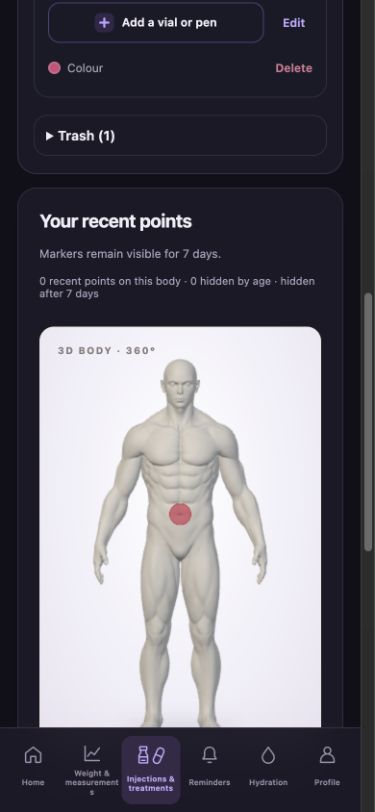
- Select the product and the relevant vial or pen. Check the date, time, quantity and unit; add a note if needed. Rotate the 3D body and place the marker in the intended location before saving.
- Check the details, optionally add a point and save.
- Closing does not confirm the reminder.
- Edit in History or recent injections to correct a record.
Expected result
The saved injection appears in the journal; its selected container and marker remain linked to that entry.
Common problems and solutions
Check the signed-in account, selected section and features included in your plan. If unsure, do not delete data; read troubleshooting or contact support.
Frequently asked questions
How do I select the container and 3D location?
Select the product and the relevant vial or pen. Check the date, time, quantity and unit; add a note if needed. Rotate the 3D body and place the marker in the intended location before saving.