 InjectLog
Reminders and notifications
Create and confirm a reminder
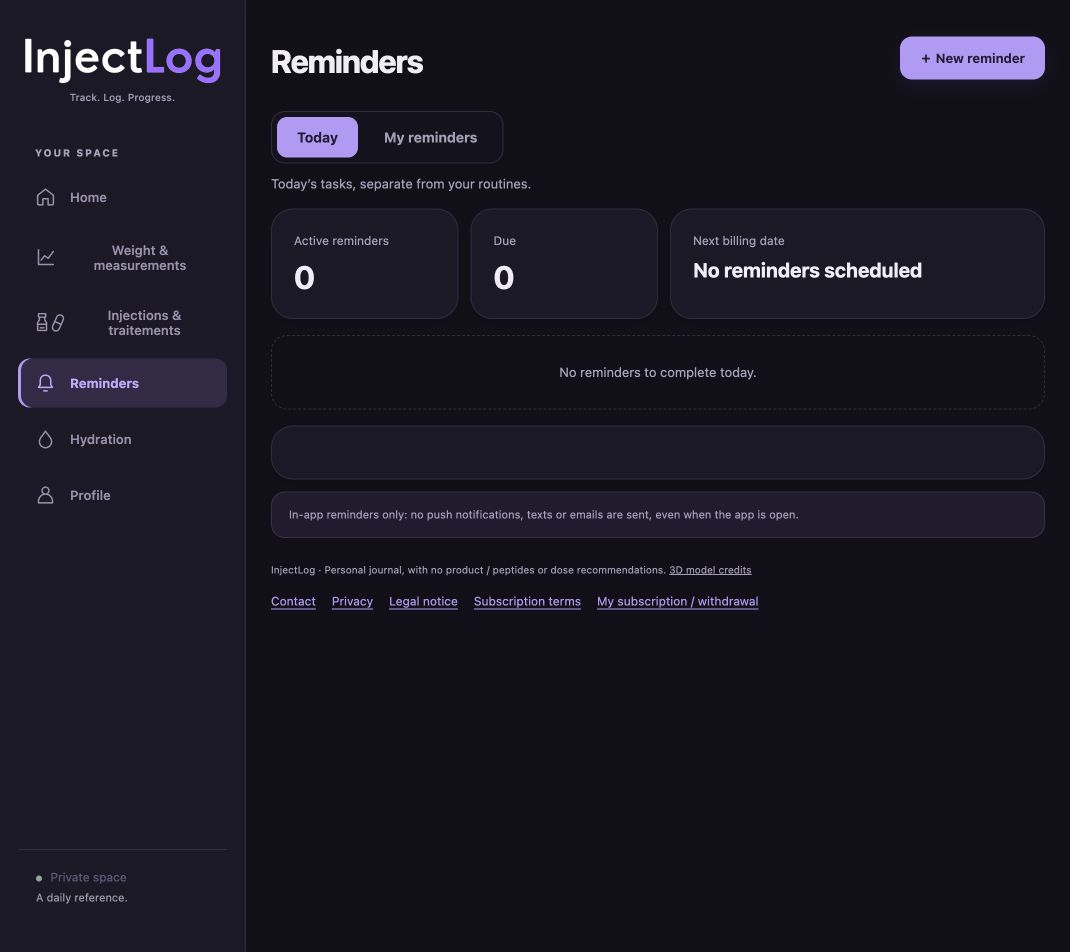
In Reminders → New reminder, choose a saved product, quantity, recurrence, date and time.
Steps
- In Reminders → New reminder, choose a saved product, quantity, recurrence, date and time.
- Custom recurrence is free; multiple times and an end date require Premium.
- Confirm opens an injection form: the reminder is completed only after saving.
- Premium notifications can be received while the app is closed if they are enabled on this device and allowed by the system.
- To change a reminder, use Edit and adjust its frequency. Postpone moves the occurrence; Skip passes it without creating an injection. Always check the new displayed date.
Expected result
In Reminders → New reminder, choose a saved product, quantity, recurrence, date and time.
Common problems and solutions
Check the signed-in account, selected section and features included in your plan. If unsure, do not delete data; read troubleshooting or contact support.
Frequently asked questions
How do I postpone or skip an occurrence?
To change a reminder, use Edit and adjust its frequency. Postpone moves the occurrence; Skip passes it without creating an injection. Always check the new displayed date.